
Installation Guide
1. System requirements
Windows 10 version 22H2 or later, or Windows 11, is required.
2. Enable hardware virtualization (already enabled on most computers)
Hardware virtualization is already enabled on most computers. Open Task Manager → Performance → CPU and check that Virtualization is shown as Enabled.
If virtualization is disabled, restart your computer and enter the BIOS settings. The procedure varies by computer model; consult the instructions for your device.
In the BIOS, locate Intel Virtualization Technology or a similarly named option and set it to Enabled.
3. Install Windows Subsystem for Linux (WSL)
Right-click PowerShell and select Run as administrator. Enter the following command:
wsl --installRestart your computer after installation. Ensure that you have a working internet connection throughout the installation process.
4. Install Docker Desktop for Windows
Follow the official Docker Desktop installation guide for Windows.
With Docker Desktop configured to use the WSL 2 backend, the Engine running status in the lower-left corner indicates that Docker is running successfully with WSL. If Docker Desktop does not start, return to Step 3 and troubleshoot the WSL installation.
5. Change the Docker image storage location
Docker images are stored on the C: drive by default and can take up substantial disk space. We recommend moving the storage location to another drive.
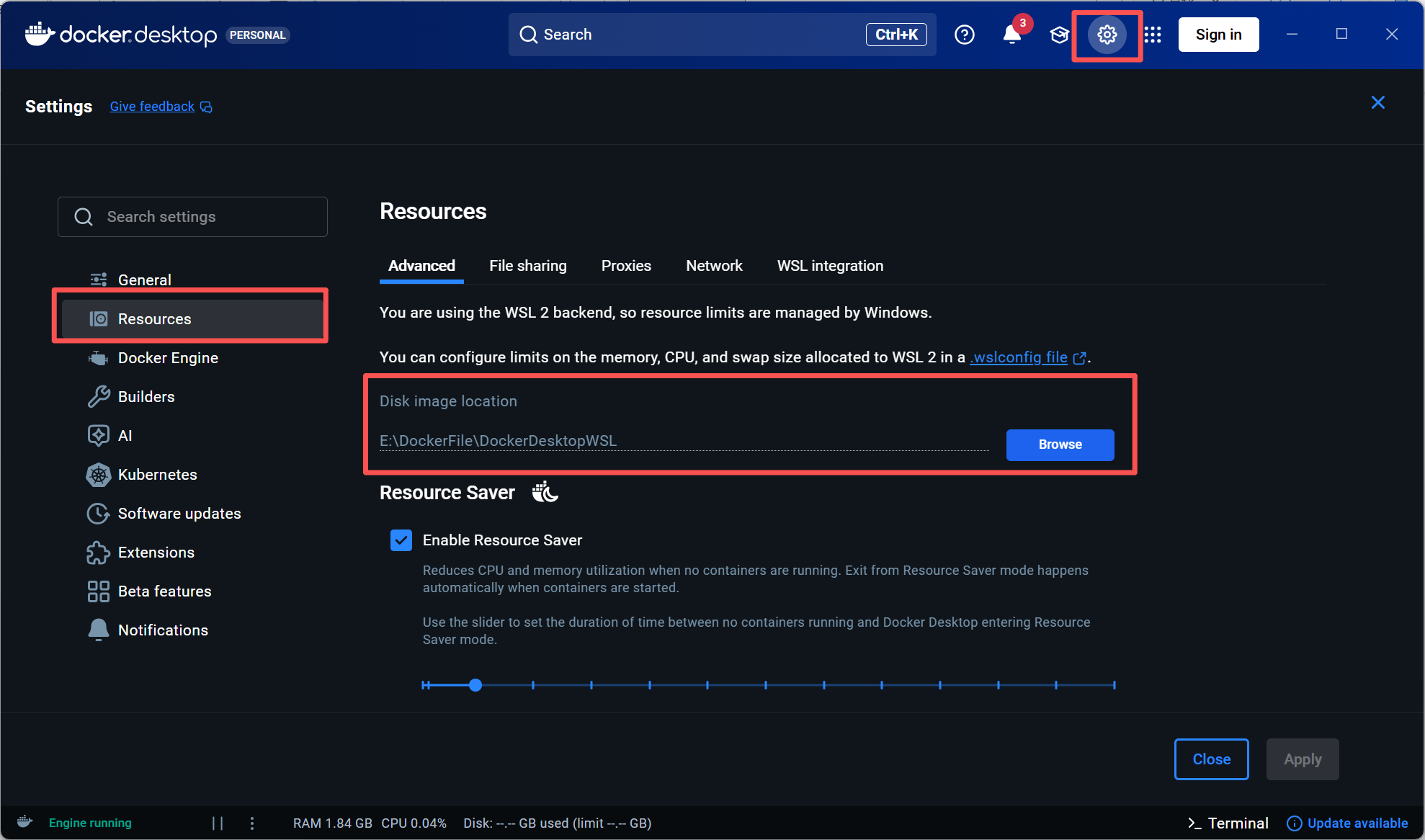
Open Docker Desktop → Settings → Resources → Advanced and change Disk image location to your preferred location.
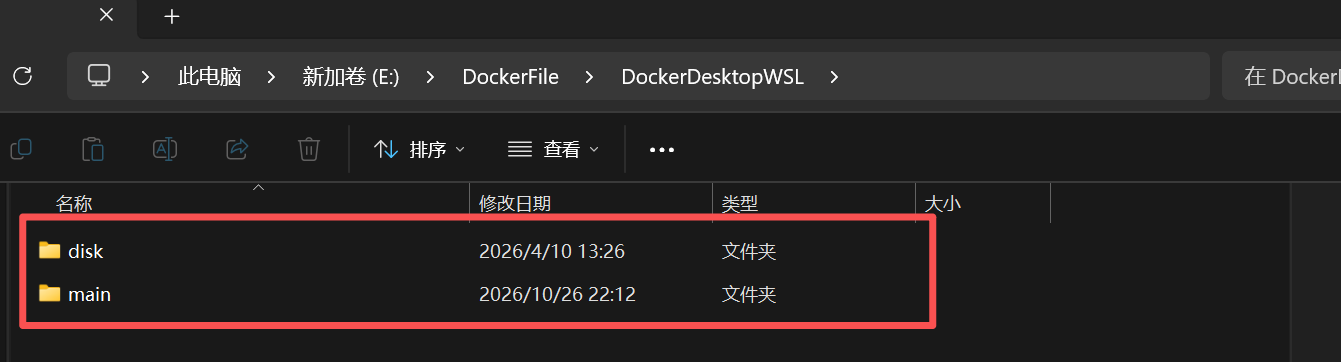
In the example below, the disk and main folders appear in the destination directory, indicating that the storage location has been changed successfully. Folder names and layout may vary with the Docker Desktop version.
6. Install MATLAB, DPABI, and supporting toolboxes
Install MATLAB. MATLAB R2024a or R2024b is recommended.
Add DPABI and the required supporting toolboxes to the MATLAB path.
In MATLAB, open Set Path and add the folders as follows:
- First: Add the DPABI path with subfolders: Set Path -> Add with Subfolders -> DPABI Path.
Second: Add the SPM path without subfolders: Set Path -> Add Folder -> SPM Path.
7. Load the DPABISurf Docker image
Download the DPABI Docker file from https://rfmri.org/DPABI. To load a locally downloaded Docker image, run the following command in PowerShell:
docker load -i "C:\path\to\docker-image.tar.gz"Replace the example path with the full path to your Docker image file, then press Enter.
Alternatively, pull the image online:
docker pull cgyan/dpabi8. Disable sleep while plugged in
In Windows power settings, set the computer to Never sleep when plugged in.
Also run powercfg.cpl to open Power Options. Select Change plan settings → Change advanced power settings → Sleep and set the plugged-in sleep setting to Never.
9. Prevent automatic restarts
If Windows 11 restarts automatically, consult the troubleshooting article linked in the original guide, focusing on the section about automatic restarts caused by Windows Update (WU).
10. Test the DPABISurf installation
Open DPABI → DPABISurf → Utilities → Volume-Surface Projector and check whether volume-to-surface projection completes successfully.
11. Obtain and install a FreeSurfer license
Visit the FreeSurfer registration page and complete the form to obtain your FreeSurfer license file.
In DPABI → DPABISurf → Utilities → Get Freesurfer license, select your own license file to replace the existing license.